
Travecar – Car Rental Elementor Template Kit
| Cetegory: | Automotive & Transportation |
|---|---|
| Full Preview: | Travecar |
| More Info: | Themeforest |
| HOW TO INSTALL |
Description
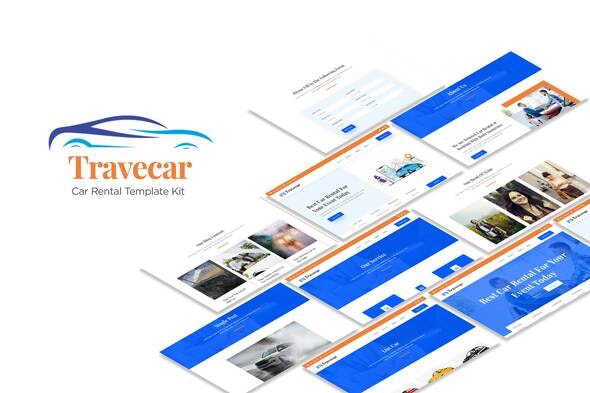
Travecar Car Rental Elementor Template Kit is a collection of layouts for the Elementor page builder WordPress plugin, designed for use with Elementor Free Version for a clean Design. It works with most themes and is optimized for use with the free Hello Elementor theme.
You Can Use Travecar Template Kit With Elementor Free Version.
12 Page Template Ready To Import
Page Templates Included :
- Home 1
- Home 2
- Our Service
- Car List
- Detail Car
- Booking Page
- About Us
- Contact Us
- Our Team
- 404 Page
- Blog Page
- Single Post
Required Plugins
- Elementor ( installed with kit)
- Elementskit Lite( installed with kit)
- Header Footer & Blocks( installed with kit)
- MeetForm( installed with kit)
- Press Elements( installed with kit)
How to Install:
- Install and Activate the Envato Elements plugin from Plugins > Add New in WordPress
- Do not unzip
- Go to Elements > Installed Kits and click the Upload Template Kit button.
- Before importing a template, ensure the Install Requirements button is clicked to activate required plugins
- For best results, do not import more than one template at a time.
How to import Metforms and content blocks
- Import metform and content blocks/slide templates
- Import the template where the form or slide appears, then click View Template to load in the builder
- Right click the page to open the Navigator and locate the Metform widgets
- For metforms, click New, leave blank selected then click Edit Form button
- Click Add Template grey folder icon.
- Click My Templates tab.
- Choose your imported metform template, then click Insert.
- Once the template is loaded, click Update.
- https://elements.envato.com/image-UA3KTMH
- https://elements.envato.com/image-PT5ZMT5
- https://elements.envato.com/image-PHMMXGU
- https://elements.envato.com/image-PBCRY7G
- https://elements.envato.com/image-DV2LRHK
- https://elements.envato.com/image-YMSL6NH
- https://elements.envato.com/image-WXF77ZG
- https://elements.envato.com/image-SC7Y387
- https://elements.envato.com/image-6J3YY59
- https://elements.envato.com/image-XSPYG95
- https://elements.envato.com/image-YAK3B3N
- https://elements.envato.com/ordering-car-DBW2KZG
- https://elements.envato.com/image-PW2EB8T
- https://elements.envato.com/image-P4US49T
- https://elements.envato.com/image-PZY5ZJV
- https://elements.envato.com/image-PGLMSWD
- https://elements.envato.com/image-P5GMBEH
- https://elements.envato.com/image-PGQUJD2
- https://elements.envato.com/image-PBKFF76
- https://elements.envato.com/image-XMX9DTX
- https://elements.envato.com/image-PFHCU3L
- https://elements.envato.com/image-ZPFMAHW
- https://elements.envato.com/image-P4MV8X4
- https://elements.envato.com/image-P66DBEU
- https://elements.envato.com/image-PYXWND5
- https://elements.envato.com/image-KTQA5PH
- https://elements.envato.com/image-AZ3Y47T
- https://elements.envato.com/image-9CPWNGF