Infiniterent – Car Rental Elementor Template Kit
| Cetegory: | Automotive & Transportation |
|---|---|
| Full Preview: | Infiniterent |
| More Info: | Themeforest |
| HOW TO INSTALL |
Description
Infiniterent is a responsive Elementor Template ideal for private transportation and bus, shuttle, van, limousine, taxi transfer service providers etc. but it would suit for any business with slight customizations.
This cleanly design and very well organized template will make editing an enjoyable experience, because 100% customizable so you can edit this template as per your choice.
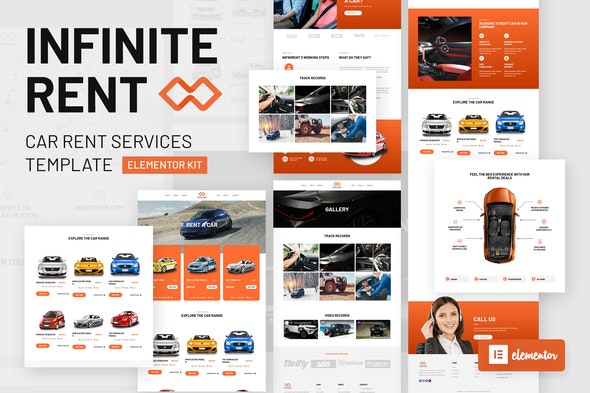
Pages and Layouts
- Home 1
- Home 2
- About
- Our Rent
- Rent Detail
- Faq
- Gallery
- Contact Us
- 404
- Maintenance
- Global Theme Styles included
- 10+ Elementor Templates
- Pixel Perfect Design
- 100% Fluid Responsive
- Clean and Simple Style
- Easy to Use and Customize
- All major browsers supported Chrome, Firefox, Safari, Edge, Opera
- Elementor Free
- Essential Addons for Elementor (Free)
- MetForm
- Header & Footer Blocks for Elementor
How to Install:
- Install and Activate the Envato Elements plugin from Plugins > Add New in WordPress
- Do not unzip
- Go to Elements > Installed Kits and click the Upload Template Kit button.
- Before importing a template, ensure the Install Requirements button is clicked to activate required plugins
- For best results, do not import more than one template at a time.
How to import Metforms and content blocks
- Import the metform block templates
- Import the template where the form appears, then click View Template to load in the builder
- Right click the page to open the Navigator and locate the Metform widget
- Click New, leave blank selected then click Edit Form button
- Click Add Template grey folder icon.
- Click My Templates tab.
- Choose your imported metform template, then click Insert.
- Once the template is loaded, click Update.
- https://elements.envato.com/sport-car-PKLVJ3K
- https://elements.envato.com/car-rental-icons-268JYP
- https://elements.envato.com/image-3UAPL9L
- https://elements.envato.com/car-automobile-contemporary-drive-driving-vehicle--PNY9PAJ
- https://elements.envato.com/blue-sedan-car-PRRD8SR
- https://elements.envato.com/marketing-icon-set-7Z4LWSN
- https://elements.envato.com/call-center-8TK3NA4
- https://elements.envato.com/image-GBWWBK6
- https://elements.envato.com/image-SWRPE3T
- https://elements.envato.com/image-VBZXLUQ
- https://elements.envato.com/image-UBXAV9F
- https://elements.envato.com/image-4XWG5WQ
- https://elements.envato.com/red-sedan-car-P3KCCYN
- https://elements.envato.com/luxury-silver-sports-car-P5ZSVAD
- https://elements.envato.com/image-PCV45AS
- https://elements.envato.com/collection-of-3d-cars-isolated-PZVASRZ
- https://elements.envato.com/hybrid-car-PBQYFTZ
- https://elements.envato.com/infinity-wave-logo-template-729L48
- https://elements.envato.com/image-MRQA7L3
- https://elements.envato.com/image-YDSNX2Z
- https://elements.envato.com/image-P7ZGQX4
- https://elements.envato.com/image-7NW8KKS
- https://elements.envato.com/image-XNNFM53
- https://elements.envato.com/image-SAXR9XY
- https://elements.envato.com/image-JBXKCPH
- https://elements.envato.com/white-car-on-a-forest-trail-golden-autumn-XU89FNH
- https://elements.envato.com/image-24AG6Y4