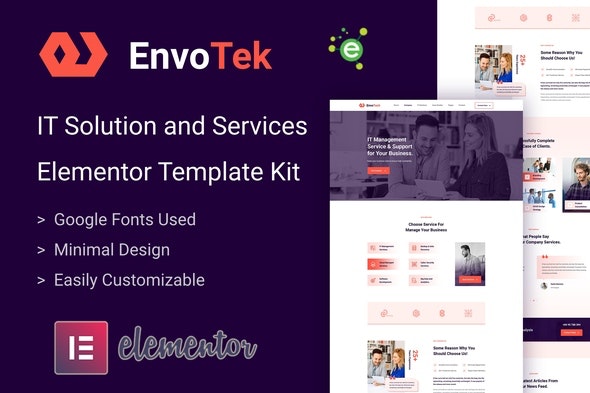
EnvoTek – IT Solution & Services Elementor Template Kit
| Cetegory: | Technology & Apps |
|---|---|
| Full Preview: | EnvoTek |
| More Info: | Themeforest |
| HOW TO INSTALL |
Description
Introduction
EnvoTek IT Solution and Services Elementor Template Kit is specially designed for the Agency, IT Business, Marketing, Software Development Consulting, Start-up, IT Entrepreneur, SaaS & Software, Digital Solution, Technical Engineering, IT Solutions, and Services Company related business website.
EnvoTek Templates
- Home Page
- About Page
- Services Page
- Service Details Page
- Projects Page
- Project Details Page
- Team Page
- FAQ Page
- Blog Page
- Blog-single Page
- Contact Page
- 404 Page
-
Block/Sections
- Header Section
- Footer Section
- Brand Section
- Service Section
- Title Section
- Project Section
- Testimonial Section
- Contact Section
- Post Section
- Hero Section
- Banner Section
- Video Banner Section
- FAQ Section
- Team Section
- Contact Section
EnvoTek Features
- No Elementor Pro needed
- 12 Incredible Template Pages
- 15 Different Sections Templates
- 27 Awesome Elements Templates
- Clean, Professional and Unique Design
- Google Fonts easily expand to 600 Google Fonts
- and much more!
Required Plugins
No pro or premium plugin required. All of these are Free plugin from WordPress.org
- Elementor
- ElementsKit Lite
- Elementor Header, Footer & Blocks
- MetForm
How to Install:
- Install and Activate the Envato Elements plugin from Plugins > Add New in WordPress
- Do not unzip
- Go to Elements > Installed Kits and click the Upload Template Kit button.
- Before importing a template, ensure the Install Requirements button is clicked to activate required plugins
- For best results, do not import more than one template at a time.
For further support, go to Elementor > Get Help in WordPress menu.
How to import Metforms and content blocks
- Import the metform block templates
- Import the page template where the form appears and right-click to enable the Navigator
- Locate and select the Metform widget and click Edit Form. Choose New, then Edit Form. The builder will appear
- Click Add Template grey folder icon.
- Click My Templates tab.
- Choose your imported metform template, then click Insert (click No for page settings).
- Once the template is loaded, make any desired customizations and click Update & Close The form will appear in the template
- Click Update
Setup Global Header and Footer in Header Footer & Blocks plugin
- Import the header and footer template
- Go to Appearance > Header Footer and click Add New button
- Give it a title and select Header, Display on Entire Site and click Publish
- Click Edit with Elementor
- Click the gray folder icon to access My Templates tab and select the header template to import and Update.
- Repeat for Footer
- https://elements.envato.com/group-of-business-people-working-as-team-in-office-W5JJFMS
- https://elements.envato.com/business-person-working-on-computer-QD6VBXB
- https://elements.envato.com/business-PBV3MWG
- https://elements.envato.com/concentrated-colleagues-in-office-using-computer-P8YX8AX
- https://elements.envato.com/creative-business-people-working-on-business-proje-S2Z57DR
- https://elements.envato.com/business-conversation-P49S3G2
- https://elements.envato.com/young-man-using-his-laptop-in-a-coffee-shop-JY8BMJY
- https://elements.envato.com/pretty-girl-working-on-her-computer-in-cafe-9AG2345
- https://elements.envato.com/woman-working-on-a-laptop-at-home-68VNWQE
- https://elements.envato.com/business-people-discussing-business-contract-29N9AWZ
- https://elements.envato.com/student-with-laptop-ZANP2CT
- https://elements.envato.com/working-on-a-computer-XSF4887
- https://elements.envato.com/mature-businessman-posing-in-car-showroom-AHGXWR4
- https://elements.envato.com/satisfied-saleswoman-in-car-dealership-DUKB7JX
- https://elements.envato.com/blonde-businesswoman-9HTEXQK
Change log
- Initial release