
Agenze – The Digital Agency Elementor Template Kit
| Cetegory: | Creative & Design |
|---|---|
| Full Preview: | Agenze |
| More Info: | Themeforest |
| HOW TO INSTALL |
Description
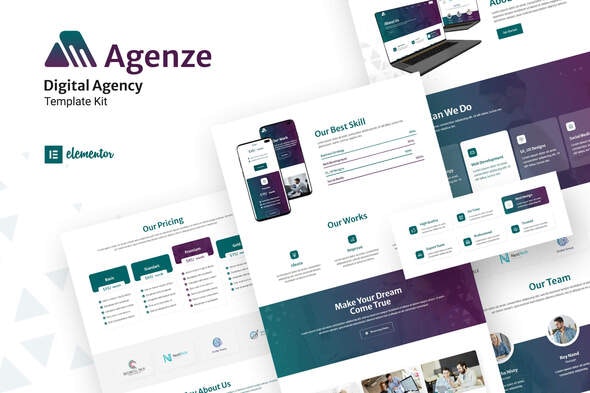
Agenze provide you with modern and creative way to brand your business. Agenze template kit has various page including Home, About Us, Team, Services, Work, Blog, FAQs, Pricing1, Pricing2, Contact Us, 404
Plugin Dependencies :
- Elementor
- ElementsKit
- Metform
- Header, Footer & Blocks Template
Templates
- Home
- About Us
- Team
- Service
- Work
- Blog
- FAQs
- Pricing1
- Pricing2
- Contact Us
- 404
Font Used
- Merriweather Sans
- Roboto
How to Use Template Kits:
- Install and Activate the Envato Elements plugin from Plugins > Add New in WordPress
- Do not unzip
- Go to Elements > Installed Kits and click the Upload Template Kit button.
- Before importing a template, ensure the Install Requirements button is clicked to activate required plugins
- For best results, do not import more than one template at a time.
- Go to Pages and create a new page and click Edit with Elementor
- Click the gear icon at lower-left of the builder to view page settings and choose Elementor Full Width and hide page title
- Click the gray folder icon to access My Templates tab and then Import the page youd like to customize
For further support, go to Elementor > Get Help in WordPress menu.
How to Import Metforms
- Import the metform block templates
- Import the page template where the form appears and right-click to enable the Navigator
- Locate and select the Metform widget and click Edit Form. Choose New, then Edit Form. The builder will appear
- Click Add Template grey folder icon.
- Click My Templates tab.
- Choose your imported metform template, then click Insert (click No for page settings).
- Once the template is loaded, make any desired customizations and click Update & Close The form will appear in the template
- Click Update
Setup Global Header and Footer in Header Footer & Blocks plugin
- Import the header and footer template
- Go to Appearance > Header Footer and click Add New button
- Give it a title and select Header, Display on Entire Site and click Publish
- Click Edit with Elementor
- Click the gray folder icon to access My Templates tab and select the header template to import and Update.
- Repeat for Footer
- https://elements.envato.com/concentrated-coworkers-speaking-and-brainstorming--P24W54B
- https://elements.envato.com/concentrated-business-colleagues-working-on-comput-PRT7A4M
- https://elements.envato.com/colleagues-sitting-using-tablet-and-laptop-in-the--PN5TXYP
- https://elements.envato.com/concentrated-coworkers-holding-digital-camera-in-t-PSWJMW5
- https://elements.envato.com/working-on-brand-design-HZUMMMA
- https://elements.envato.com/brand-managers-coworking-GGFAYDE
- https://elements.envato.com/analyzing-data-thoughtful-young-trader-is-pointing-Y77DWFL
- https://elements.envato.com/colleagues-handing-branding-plan-strategy-to-other-PFTX9XR
- https://elements.envato.com/analyzing-financial-statistics-MK4FS59
- https://elements.envato.com/company-photo-editor-and-photographer-working-toge-DFMJP2H
- https://elements.envato.com/asia-teen-girl-university-student-using-laptop-com-52ZSN8G
- https://elements.envato.com/business-woman-do-the-video-call-conference-and-sh-7CHV3TL
- https://elements.envato.com/customer-service-executive-trainer-monitoring-her--2VWL4KQ
- https://elements.envato.com/handsome-man-in-formal-wear-reading-document-in-ap-CSYD76Z
- https://elements.envato.com/mature-and-confident-business-executive-looking-lo-7Z4YFXU
- https://elements.envato.com/imac-27-inches-mockup-KCW79DX
- https://elements.envato.com/tired-woman-at-work-5QXCSEM
- https://elements.envato.com/macbook-full-screen-UJ9JGLQ
- https://elements.envato.com/smiling-multicultural-colleagues-talking-and-using-2CJ5YM7
- https://elements.envato.com/digital-design-RUCLVXY
- https://elements.envato.com/smiling-multicultural-colleagues-sitting-at-table--BV2FRFW
- https://elements.envato.com/smiling-engineer-using-digital-tablet-P7PJWXP
- https://elements.envato.com/caucasian-woman-in-a-conference-room-holding-a-dig-2BYE5RR
- https://elements.envato.com/app-mobile-mockup-BDP8TLZ
- https://elements.envato.com/s10-mockup-YBE56E
- https://elements.envato.com/discussing-financial-statistics-J3LHZJ3
- https://elements.envato.com/business-talk-logo-template-9FX8SJ
- https://elements.envato.com/technology-and-business-logo-QM5FH8U
- https://elements.envato.com/global-group-company-business-logo-template-KAJPE63
- https://elements.envato.com/global-marketing-8HBTN5
- https://elements.envato.com/asian-young-businesswoman-showing-thumb-up-YBV3NA3
- https://elements.envato.com/businessman-with-thumb-up-XVEC7M8
- https://elements.envato.com/businesswoman-with-thumb-up-HK8Y42F
- https://elements.envato.com/young-businesswoman-show-with-thumb-up-P7N2LUD
- https://elements.envato.com/young-businessman-with-thumb-up-BF44A57
- https://elements.envato.com/attractive-male-office-manager-has-paperwork-with--467J7LL
- https://elements.envato.com/satisfied-blonde-female-in-eyewear-denim-shirt-stu-9TLMR4A
- https://elements.envato.com/positive-attractive-female-freelancer-work-with-do-8QDA8BN
- https://elements.envato.com/handsome-businessman-thinking-while-drinking-coffe-A9T37Z7
- https://elements.envato.com/coffee-time-fashionable-young-hipster-in-black-hat-46KRH2Y
- https://elements.envato.com/happy-young-businessman-holding-coffee-at-the-coff-EE2PPEE
- https://elements.envato.com/cheerful-young-woman-posing-in-creative-agency-P8NMKLX
- https://elements.envato.com/confident-female-designer-working-on-a-digital-tab-PGRZBRR
- https://elements.envato.com/full-length-portrait-of-a-confident-businessman-P7AXBF9
- https://elements.envato.com/full-length-portrait-of-a-happy-young-businessman-BPM5V4T
- https://elements.envato.com/group-of-professional-successful-business-people-Y52H5LF
- https://elements.envato.com/business-people-JEN9555
- https://elements.envato.com/computing-by-desk-83ZGJCU
- https://elements.envato.com/designer-computing-ZRHWKCG
- https://elements.envato.com/reading-online-information-G34ZTU7
- https://elements.envato.com/pretty-businesswoman-8AR9KXA
- https://elements.envato.com/business-planning-meeting-colleagues-sitting-toget-DJDCXZE
